Custom shapes
Introduction
Basic shapes are very useful, but you can also create personal custom shapes. Creating a new shape means designing a new draw-able node. Every shape has:
Configuration (coded using interfaces)
Drawing code (code that reads configuration and draws shape on canvas)
Bounding box calculations (functions to calculate effective width and height of a new shape)
Extending Pamela.Shape
To create a new shape, you can extend the base generic class Pamela.Shape. This is its prototype:
export class Shape<Config extends ShapeConfig = ShapeConfig> extends Node<Config> {
  ...
}It is a Generic Class that accepts a type parameter representing his configuration properties. Every new configuration should be an interface extending ShapeConfig. ShapeConfig represents basic shape configuration properties such as fill, width, height and many more.
As you can see, every shape is also a node, so it has his basic functions and properties.
Example
// Create new shape configuration
// Adding a number
export interface MyShapeConfig extends ShapeConfig {
  num?: number;
}

// Create new shape class
// using new configuration
export class MyShape extends Shape<MyShapeConfig> {
  ...
}Shape constructor
Do i have to override default constructor to add my configuration? No. Overriding default constructor can lead to instantiation problems. It is automatically generated using the configuration type.
Generated constructor:
constructor(config?: MyShapeConfig) {
    super(config);
    ...
}Drawing something
How can i specify what has to be done when drawing my custom shape? Overriding method _sceneFunc of base class.
export class MyShape extends Shape<MyShapeConfig> {
  _sceneFunc(context: Context): void {
    ...
    // Important!!!!
    context.fillStrokeShape(this);
  }
}_sceneFunc is called every time the shape needs to be re-drawn. It receives the drawing context to use for creating awesome stuff. It does not return nothing. Parameter context is an instance of class Context. It is a wrapper to Javascript Canvas Api and adds more advanced methods for drawing purposes.

context.fillStrokeShape(this); is mandatory. If not called, Pamela won’t be able to detect presence of this shape into the Stage and most of the events on it won’t work. Do not forget it!
Registering new Shape
Every new shape has to be registered into the global shapes store. It is basically an array of key-value tuples associating every shape name to its corresponding class. If not correctly registered, our new shape won’t be correctly save-able and reload-able.
Shape class name
Every shape has its own class name, a string allowing to distinguish between generic shapes. For example, Pamela.Rect has Rect as class name.
At the end of the file, add this lines for registering shape and setting its class name:
MyShape.prototype.className = 'MyShape';

// Register this new shape
_registerNode(MyShape);With this, our shape will be draw-able, save-able and reload-able.

Shape class names should be always with initial upper case. Another good practice is using the same class name for shape class and className.
Adding shape fields
Every new shape has to store some additional fields. For example a table should store its columns and rows. How to achieve this? Using GetSet<T> and Factory utils. Let’s see how.
Let’s assume we want to add a field number to our newly created shape MyShape. We want to be able to store it, access it from the class itself and set/get it from outside the class. These are the steps:
Add field indicator using
GetSetAdd accessor methods using
Factory.addGetterSetter
export class MyShape extends Shape<MyShapeConfig> {
  // This is our number accessor. It will contain the value
  // and allow us to get it and set it
  public num: GetSet<number, this>;

  _sceneFunc(context: Context): void {
    ...
    // Important!!!!
    context.fillStrokeShape(this);
  }
}

// Add effective getter/setter methods to perform accessing
Factory.addGetterSetter<number>(MyShape, 'num', 0);

MyShape.prototype.className = 'MyShape';

// Register this new shape
_registerNode(MyShape);Now, our field num will be storing a number for us. To get its value use num(), to set its value use num(<value>).

Since num is also a custom property in MyShapeConfig, it will automatically be parsed and stored from shape configuration.
Bounding box and transformers
Now, if we add our shape to a stage, we’ll se that it can be successfully drawn. But if we try to attach it to a transformer, it will lead to page crash. Why? In pamela, custom shapes cannot detect their bounding box.
What is bounding box?
It is a rectangle is witch our shape can be fully contained. It represents current maximum shape width and height (most far point of shape). It should not care about transforms (viewport modifications like zoom or other). Every bounding box has this 4 properties:
Property | Type | Description |
|---|---|---|
x |
| Effective shape topleft corner x relative to logical shape start. |
y |
| Effective shape topleft corner y relative to logical shape start. |
|
| Effective shape width |
|
| Effective shape height |
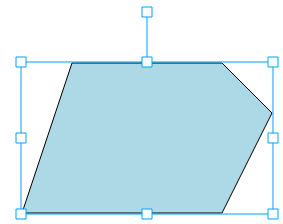
Detecting bounding box
Overriding method getSelfRect we can tell Pamela how witch is the bounding box of this shape.
export class MyShape extends Shape<MyShapeConfig> {
  ...

  getSelfRect(): {x: number, y: number, width: number, height: number} {
    return {
      x: <some>,
      y: <some>,
      width: <some>,
      height: <some>,
    }
  }
}

...x of bounding box should NOT be this.x(). Same is for y. It should be a value starting from 0, with (0, 0) indicating topleft shape corner.
Making a shape draggable
By default, any shape has a draggable property to enable / disable dragging. If you have followed this guide, your newly created shape WON’T BE DRAGGABLE. To implement it, we have to help Pamela detect active area of this shape.
How does dragging work?
Pamela, when we click a button that should trigger a drag start, iterates every shape and for each of them, requires its effectively drawn area. This is done using the Hit Canvas. Its a canvas where every shape draws only a rectangle or a polygon defining its active area. It is not visible, but it is used to detect shape events. If an event is done on part of a shape that is effectively drawn (its coordinates are in the hit polygon) it triggers the event.
How to implement this drawing?
To implement dragging, simply define this function in the shape class:
// Called when we need to render hit canvas
_hitFunc(context) {
    var width = this.width(),
      height = this.height();

    // Draw a simple rect to describe shape active area.
    // Every point outside this rectangle will be ignored
    context.beginPath();
    // This is very important
    context.rect(0, 0, width, height);
    context.closePath();
    context.fillStrokeShape(this);
    context.drawRectBorders(this);
  }
If you don’t define this function, your shape WON’T BE DRAGGABLE